
You can show a YouTube video right inside a blog post or page on your website. You don't need YouTube's "embed code" and you never paste any code: you copy the video's link, paste it into your editor, and save.
Step 1: Copy the video's link from YouTube
- Open the video on YouTube.
- Click Share under the video, then click Copy.
- On a phone, tap Share, then Copy link.
Any YouTube link works: a normal video, a Short, or a short youtu.be link. It can be your own video or anyone's public video.
Step 2: Open your post
- Go to [your-site.com]/editor and sign in if it asks.
- Open the post or page you want the video in, or click New to start a new one.
- Scroll down to the Body box and click where you want the video to go.
Step 3: Add the video
- In the small toolbar at the top of the Body box, click Insert, then YouTube video.
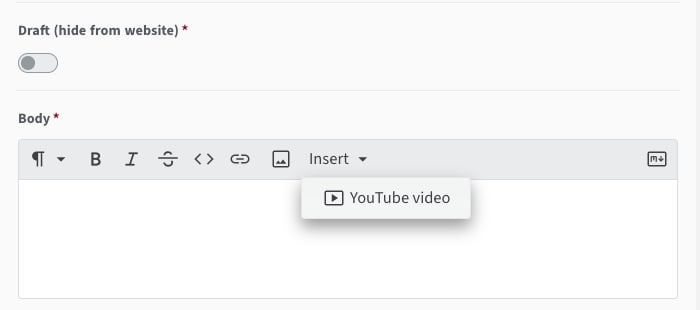
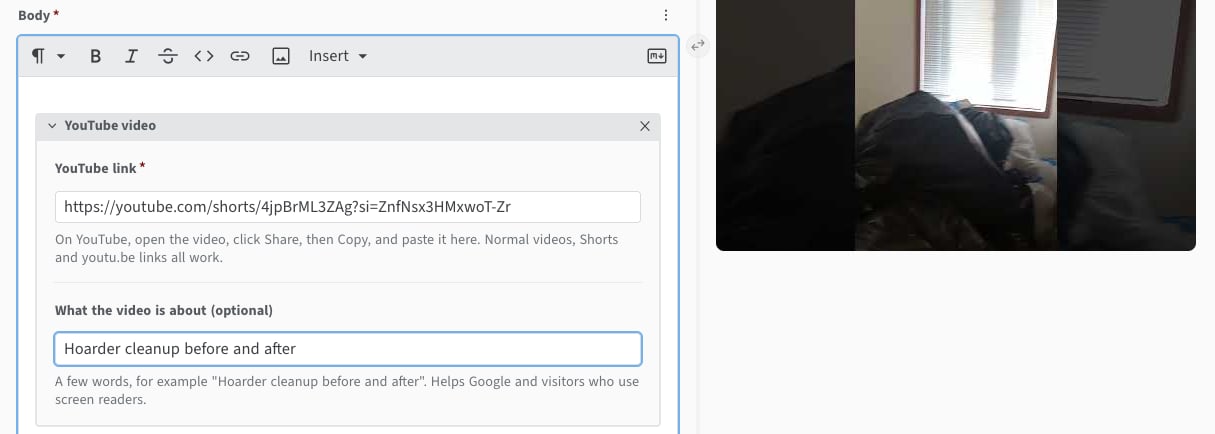
- A YouTube video box appears. Paste your link into YouTube link.
- Optional: in What the video is about, type a few words, like "Kitchen cleanup before and after". This helps Google and visitors who use screen readers.
Step 4: Save
Click Save in the top-right corner. Your post updates on your website in about 1 to 2 minutes.

The video fits any screen, including phones, and it doesn't slow your page down: YouTube's player only loads when someone clicks play.
Changing or removing a video
- To change it: open the post, paste a different link into YouTube link, and save.
- To remove it: click the × in the top-right corner of the YouTube video box, and save.
- To move it: remove it, click where you want it instead, and add it again.
Need a hand?
"No picture shows in the preview."
Check that you copied the link from YouTube's Share button. Links from other video sites won't work.
"I already pasted YouTube's embed code into a post."
That still shows correctly on your website. Next time, Insert then YouTube video is easier to change later.
Still stuck? Call or text us at 888-757-4737 and we'll walk you through it.